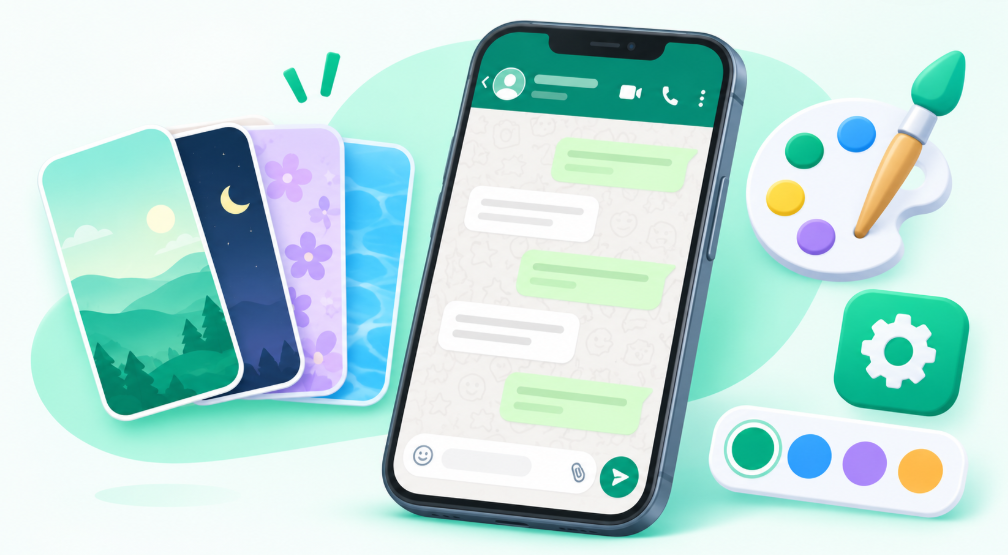
How to Change Themes in GB WhatsApp
GB WhatsApp allows users to customize parts of the app’s appearance through theme options, chat wallpapers and interface settings. Depending on the installed version, you may be able to apply built-in themes, import downloaded theme files or adjust individual colors.
The available customization options and menu names can vary between GB WhatsApp releases.
What Are Themes in GB WhatsApp?
Themes change the visual appearance of the messaging interface. A theme may affect the chat screen, background, toolbar, buttons, colors and other interface elements.
Depending on the version, GB WhatsApp may provide:
- Built-in themes that can be applied from the app.
- Downloaded themes that can be imported.
- Individual chat wallpapers.
- Color and appearance settings for supported interface elements.
Not every version supports the same theme options. A theme created for one release may not work correctly with another.
How to Change Themes in GB WhatsApp
Follow these general steps to check and change the available themes:
- Open GB WhatsApp on your Android phone.
- Open the app’s menu or settings.
- Look for the Themes or Theme Store option, if available.
- Browse the available themes.
- Select a theme and apply it.
- Return to the main chat screen to check the appearance.
Some versions may require the app to reload before all visual changes appear.
If you cannot find a theme option, check the customization settings available in your installed version. Do not assume that every GB WhatsApp build has the same menu layout.
How to Apply a Downloaded Theme
Some GB WhatsApp versions support importing themes from local files. The exact file format and import method depend on the app release.
If your version supports theme imports:
- Obtain a theme file that is compatible with your GB WhatsApp version.
- Save the file to your phone.
- Open the theme settings in GB WhatsApp.
- Select the option to load or import a theme, if available.
- Locate the saved file and follow the on-screen instructions.
- Check the interface after the theme has been applied.
Only use theme files from sources you trust. A downloaded theme file is not automatically safe just because it is designed for GB WhatsApp. Avoid files that request unrelated permissions or require installing additional unknown applications.
How to Change the Chat Background
You can also personalize individual conversations without changing the entire app theme.
The general process is:
- Open the conversation you want to customize.
- Open the chat menu or conversation settings.
- Look for Wallpaper or Chat Background.
- Choose an available background or select an image from your phone.
- Preview the result and apply it.
Some versions may provide separate wallpaper settings for individual chats and the overall conversation screen.
A simple background with good contrast can make messages easier to read. Avoid images that make message text difficult to distinguish.
How to Customize Chat Colors and Appearance
Depending on the installed version, GB WhatsApp may include additional appearance controls.
These may cover:
- Toolbar colors: Change the appearance of the top navigation area.
- Chat backgrounds: Set a different background for conversations.
- Message colors: Adjust supported incoming or outgoing message colors.
- Text appearance: Change available text or interface styles.
- Other interface elements: Customize colors and visual details where supported.
Open the customization settings and check which options are actually available. Some settings may affect the entire app, while others apply only to chat screens.
Why Is a GB WhatsApp Theme Not Applying?
A theme may fail to apply because of an unsupported file, an incomplete download or a compatibility issue.
Theme File Is Not Supported
A downloaded file may use a format that your installed version cannot import.
Check whether the theme was designed for your GB WhatsApp release. If the app does not recognize the file, do not rename it randomly or try unrelated formats.
Theme Download Is Incomplete
An interrupted download can leave you with an incomplete theme file.
Check the file size and download status. If the file appears incomplete, remove that copy and obtain the file again from a source you trust.
Theme Is Incompatible with the App Version
Themes may depend on specific interface components or app versions. A theme designed for an older release may not display correctly in a newer build.
Check the theme’s compatibility information before importing it. If the problem started after an app update, consider whether the theme needs a compatible version.
How to Restore the Default GB WhatsApp Theme
If a custom theme causes display problems or you prefer the original appearance, check the theme settings for an option such as Default Theme, Reset Theme or Restore Default.
The exact wording depends on your installed version.
After restoring the default appearance:
- Return to the main chat screen.
- Check whether the original interface has returned.
- Reopen the theme settings if some colors or backgrounds remain unchanged.
- Check individual chat wallpapers separately, as they may have their own settings.
Restoring the default theme does not necessarily remove all individually selected chat wallpapers.
Frequently Asked Questions
Can I use downloaded themes in GB WhatsApp?
Some versions support importing downloaded themes. Compatibility depends on the theme file format and the installed app version.
Why is the Theme Store missing in GB WhatsApp?
The option may be unavailable, renamed or located elsewhere in your version. Different third-party builds do not always provide identical customization features.
Can I change the background of one chat only?
Some versions provide individual chat wallpaper settings. Check the conversation menu to see whether this option is available.
Will changing a theme delete my chats?
Changing the visual theme should not normally delete chat history. However, back up important conversations before making major app changes, especially when importing files or reinstalling the application.
Can an old GB WhatsApp theme work with a new version?
Not always. Theme compatibility depends on the app version and the theme’s supported interface components. Check compatibility before applying an older theme.